
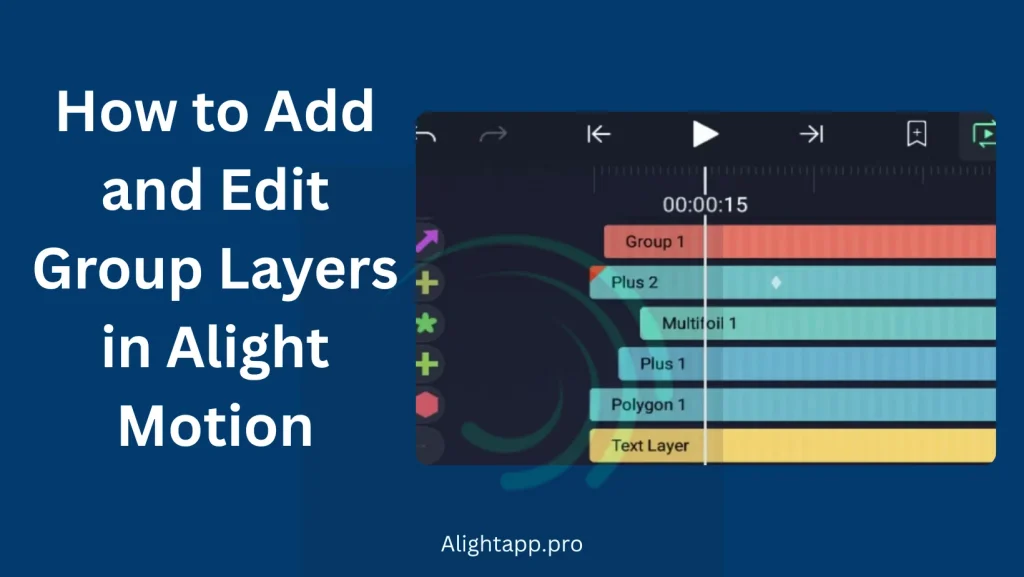
As a content creator, it is not easy to track specific layers, especially if you are working on a complex project. To solve this problem, Alight Motion Pro offers a layer grouping tool to organize and manage all the layers in the timeline. Our team has researched and found the best way to use layer grouping tools in video editing and motion graphics complex projects. Here is how you can use layer grouping.
Why to group layers in Alight motion?
As a content creator, have you ever considered taking your content to the advanced level by grouping layers in Alight motion? It is the best way to create quality animations. We will provide you with a complete guide on using many layers to capture the audience’s attention.
Our team has checked and experienced how to make stunning animations in less time. You can easily use this technique through our step to step guide and some tips to create quality content.
Significance of layers
Alight Motion is a fantastic video editing application that many content creators use. Layers in Alight Motion are the most critical components of doing an organized project. They are piled with each other, and each of them can be edited individually, and this will not cause any harm to the whole group.
Layers can be used to create different types of content. You can edit your videos, add audio such as music or any voiceover, add text or shapes like circles, squares and many different kinds, whichever you want, and make adjustments and apply effects.
Layers play a vital role in making the content more engaging by using various effects in a single video. The extent can be increased by implementing specific layers such as background, foreground and midground layers to make more enticing visuals.
Advantages of grouping layers
How to make layers in Alight Motion?
Following are the steps by which you can add layers in Alight Motion.
Note: there is no way to add a new empty layer in Alight Motion. Alight Motion only allows you to copy, paste and duplicate any layer in the timeline.
How to group layers in Alight motion?
If you want to group layers in Alight motion, you can easily do it by following the below-mentioned steps. Apart from this Alight Motion also allows you to group and mask the layer with one click.
How to ungroup layers in Alight Motion?
If you want to ungroup the layers, you can simply do it by
How to edit group layers?
If you want to edit the group layers, you have to select the group layer from the timeline and tap on it. After that click on Edit Group and you will see all the layers that are grouped. Now choose the one which you want to edit and make adjustments.
Tips for Grouping Layers
Here are some tips which will help you in grouping layers more effectively.
Conclusion
Alight Motion is an outstanding application for content creators with specific features like grouping layers which saves your time by selecting several layers at once, and the effects or adjustments can be made once. There is no need to select each layer and make adjustments to everyone.This can be done with little effort and time as well. Grouping layers help to make an organized project with a professional touch, and it also helps to improve the quality of the content. This will increase efficiency and create content in less time.
