
You may have seen videos on internet or social media in which the text pops up with a very smooth transition and the scene changes from one to another. These are all examples of animation videos. Creating animation videos is not very difficult task, especially if you’re a beginner using the Alight Motion mobile application. In this introductory guide to creating animation and editing videos, we will walk you through every step that can help you create videos easily.
Understanding Interface
Before beginning the process of creating animation and editing videos, it is necessary to familiarize yourself with the interface of Alight Motion so that you will be able to understand the functionality of each tool and its features. If you are a complete beginners than check out these guides to learn basics of Alight Motion. You must know the basic Alight Motion video editing before start using keyframe animation to get better results. When you open the Alight Motion application, you will see the home screen which includes tutorials, projects, and templates. To start a new project, you must click on the + button, set the ratio, resolution, frame rate, background, and tap on “create project.”
Once you have created a new project, it will take you to the editor screen where you will find all the tools and timeline. To import media into the timeline, you must click on the + button and tap on “media” to import your footage. Apart from the media tab, you will also see various other options that can help you in many ways with your project.
How to Create Basic Animation in Alight Motion
Creating animation can be a fun and enjoyable task, but before starting the process, it is important to understand the tools that are available to help you create animations. In Alight Motion, the move and transform tools are the primary tools used for animation. Within this tab, there are several tools available, including keyframes, bezier, position, scale, skew and rotation.
Keyframes
Keyframes are points that mark the start and end points of an animation means that on what point the animation will start and where it will end. By using keyframes, you can move an object in any direction. To do this, simply add a keyframe at the start and end of the layer and then decide the direction in which you want the object to move.
Bezier
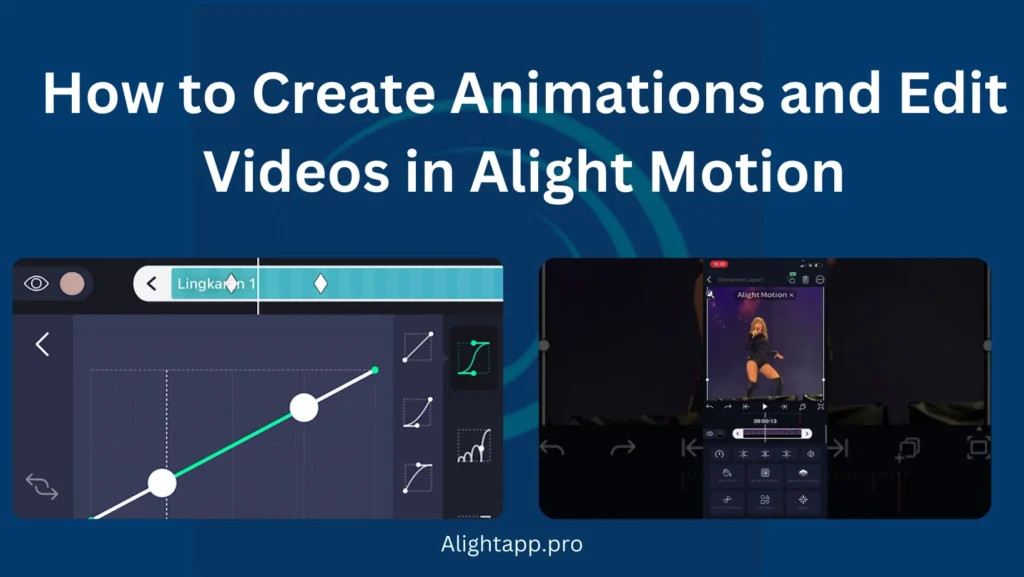
Bezier is a mathematical curve that is used to create smooth and natural movement in graphics and animation. You can find Bezier option under the move & transform tab in Alight Motion interface. Bezier curves allow users to manipulate the speed and acceleration of an animation. For example, if you have created an animation that is moving from one point to another, you can use curves to make the movement of the object smooth.
Position, scale, skew and rotation.
Position, scale, skew and rotation are the basic set of tools used to control the movement of an object. With the help of these four tools, you can change the look and feel of the object that you want to animate.
Step by Step Process of creating animation
Imagine you want to create a simple animation video in which a plane is moving forward. First, you have to create a new project and add a plane shape. To add the plane, click on the + button, go to the Shape tab, and add the airplane to the timeline. You can also create your own shape and import it into Alight Motion.
Now, we can make some adjustments to make the movement of the plane smoother. To do so, you need to follow the Bezier properties. again, locate Move & Transform and tap on Bezier. In the Bezier tab, you will find various types of Bezier properties. We just need to work with the Cubic Bezier easing. Cubic Bezier helps keep the movement slow at the beginning and then fast at the end. After applying this, you will experience a smoother movement of the airplane.
Congratulations, you have also learned how to make your animation smooth. This is how you can create a basic animation using Alight Motion.
Adding Effects to your Project
To further improve the quality of your animation videos, you can apply different effects based on your desired outcome. Alight Motion offers a wide range of effects to apply in your project. These effects include color grading, brightness adjustment, contrast, color, light and more. To add an effect, simply click on the layer and navigate to the effect menu. From there you can select any effect that you think is appropriate for your project.
How to edit videos as a beginner in Alight Motion
Once you familiarize yourself with the Alight Motion tools and interface, it becomes much easier to edit any type of video. To edit a video, you must follow step-by-step instructions.
Once you’ve followed these steps, your basic video editing is almost done. However, you can further polish your video by applying more effects.
Export your project
Once you have finished with video editing and animation creation, it is time to share it with others. Alight Motion offers several exporting options, including sharing directly over social media, uploading to the cloud, and getting links.
To export your final project, you must click on the export button at the top right corner and then choose your preferred format. You can export a video in multiple formats like MP4, GIF, image sequence, and more. Alight Motion allows you to export from 180p to 4k with a frame rate of 60 FPS. You can also increase and decrease the quality of the exported video, but doing so will also increase or decrease the size of the project. Once you have finalized your exporting option, just click on export, and the video will be exported to your device. That’s it; you have successfully learned animation creating and video editing.
Closing Thoughts
Alight Motion Mod Apk is a powerful tool that provides freedom to create animation and edit videos on your device. If you’re a beginner and want to create basic animation, you can use keyframe and bezier properties to make the animation smooth. Furthermore, to further polish the animation, you can apply different effects. It’s also necessary to learn about the interface and tools of Alight Motion. Once you are familiar with the tools and interface, you can easily edit videos and create animations.
